
Create a Placement
A Placement is a named, reusable place where Offers or other Content Objects can be targeted, such as a mobile app, a location on a website, or a particular section of an email message.
To create a Placement:
-
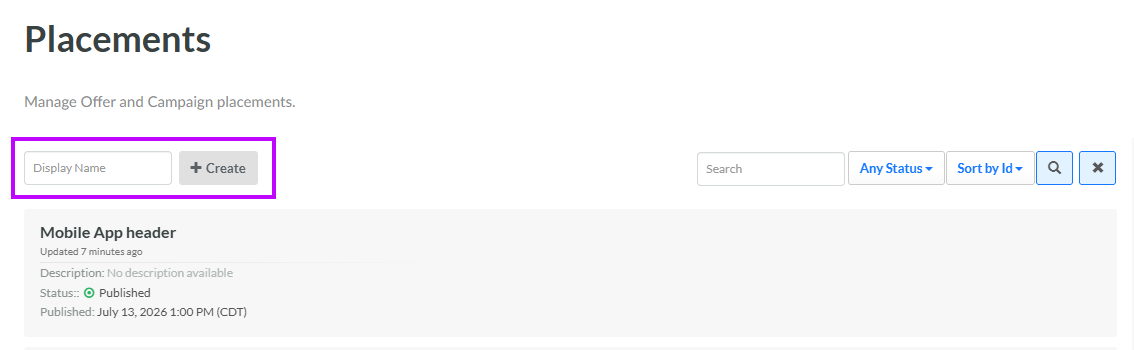
Select Campaigns from the top navigation bar, then select Settings > Placements from the side navigation menu. The Placements screen is displayed.
-
In the Display Name field, enter the name of the new Placement.
-
Click Create. The Edit <Display Name> pop-up window is displayed.
-
The Display Name field is populated with the value you entered above; optionally edit this value.
-
The Internal Name is automatically populated based on the Display Name value. This field is not editable by default. To edit the Internal Name, check Edit Internal Name. A confirmation dialog box is displayed; click Ok. Edit the Internal Name value.
-
Optionally, in the Description field, enter a description of this item.
-
Optionally, from the Platform drop-down menu, select the channel for this Placement: Web, Mobile, or Email.
-
If you selected Web as the Platform, optionally enter the URL for this website.
-
Click Save.
Click the new Placement to view the Placement Details screen. See View a Placement for more information.
